Showing posts with label Tutorials/Walkthroughs - Retail Games. Show all posts

Monday, January 28, 2013

Steam Games Updates (Patches): How to Enable Auto Updating

So someone asked me how to enable auto updating for his Steam games. This guide is for him. This guide also covers how to force your Steam client to automatically begin scanning for Steam games updates.

By the way: RIP THQ and Vigil Games. You guys will be missed. Here's hoping we'll see a Darksiders 3. A world without that franchise is no place for a horse.


The full guide after the jump.


>>>Click here to read more...

Thursday, August 23, 2012

Darksiders 2: How to Redeem the Van Der Schmash and Mace Maximus Hammers (Steam; PC)

So a lot of people have been floundering on how to get and use the redeem codes for the Darksiders 2 hammers Van Der Schmash and Mace Maximus. I'm putting up this post for Steam PC users who are confused about the whole process.

Though both have identical damage stats, the Mace Maximus is the weapon of choice when you want a charged attack that clears mobs...

...while the Van Der Schmash has a charged attack that's geared towards taking down a single foe.

The (Steam PC) guide can be found after the jump.

First off, make sure you've linked your game to a THQ account. The first time you fire up Darksiders 2, the game should walk you through in creating a THQ account and/or linking the game to the account. (Needless to say, make sure what you enter is a valid e-mail account and that you have access to it!)


After doing that, your email should have a letter similar to this one:


Please take note that you'll only get the redeem code for the Mace Maximus if you had purchased Darksiders II before it launched last August 28, 2012 (ie, pre-purchased the game).

Login to your THQ account that you linked the game to then go to the URLs indicated in the e-mail: http://darksiders.com/mace and  http://darksiders.com/register. You should then receive codes in both windows (one if you haven't pre-purchased the game; you won't be able to get the Mace Maximus, only the Van Der Schmash).


Login to your Steam account, then under Games, click "Activate a Product on Steam."


This pop-up will appear:


Click Next to continue. Enter the codes you received. (Needless to say, redeem each code separately; copy-pasting both codes simultaneously into the same field will not work. I had to drop this line in. An acquaintance did ask about that.)


If you don't run into THQ tech problems, you should see the following screens each time you redeem a hammer (axe; whatever):


If you do run into problems and the above doesn't work for you, please see the following forums:

http://community.darksiders.com/go/forum/view/138731/236123/redeem_token_help_and_updates


Please take note that I am NOT a THQ representative. As such, I can not help you technical problems. I only shared what worked for me in an effort to help fellow gamers. I hope I helped you. Please leave a comment!

Like my Facebook page: http://www.facebook.com/pages/Imbacore/180717828626996

Subscribe to my YouTube channel: http://www.youtube.com/user/ildamos

Having trouble with Darksiders 2 graphics and visual settings? Click HERE. 


>>>Click here to read more...

Wednesday, August 15, 2012

Darksiders 2 PC Bugs and Video Settings Tweaks

[UPDATE 1 (August 17, 2012): The first Darksiders 2 patch is out! The changelog can be found below. Added solution to "Cannot activate Reaper form." Added possible solution to "Cannot rebind keys." See the solutions below.]

[Update 2 (October 10, 2012): Added links to related Darksiders 2 posts. Changelog of the second patch added. (Placed at the very end of this article.]

Darksiders 2 just launched and while I've pre-purchased the game, I will have to sit out the first day as I've been hit by a weird Steam bug: though the progress bar was updating, the % indicator always showed "0" all throughout my first try at downloading the game. I should have deleted the local content and re-downloaded the whole thing.

Anyway, I am now in the process of reinstalling the game and so far the progress bar now shows changing percentages so I'm taking this as a good sign. Fingers crossed that come morning, I will find a working copy of the game on my Steam Library page.

I've read disturbing reports on the forums that Darksiders 2 has its own shares of bugs and that the video settings in the options menu are severely limited. This article shows you how you can improve the game's video settings--especially anti-aliasing and vsync, two parameters that serious gamers can't stand not fiddling with.

Bugs--bringing out the worst in us since 1993.
The tutorials and links to the solutions after the jump.


>>>Click here to read more...

Friday, July 27, 2012

Killing Floor Maps, Tips, Strategies


General:

Probably the most important tip for the entire game:

Unless:

-You’re a medic drawing aggro in an attempt to protect the sharpshooters/wounded teammates
-You’re a Support Specialist packing a superior shotgun
-You’re confident you can kill it with minimum fuss (in the case of a Sharpshooter)

Do not fire upon Scrakes or Fleshpounds. Drawing aggro if you have weapons that aren’t designed to kill the larger Zeds would only make the bigger Zeds angry, causing them to charge. Charging Scrakes and Fleshpounds make for agile targets, giving Sharpshooters a hard time bringing them down.


In maps where the squad makes a stand in a corridor (KF-BioticsLab and KF-Offices come to mind), mind your lateral movements. This is to ensure that you don’t inadvertently block the aim of Sharpshooters.

The Crossbow’s ammunition is VERY expensive. If you see an ammo crate, give it to the Sharpshooters. Of course, this is a case-to-case basis but in a team with lots of Firebugs and Commandos, Sharpshooters oftentimes do not shoot minor Zeds willy-nilly and instead reserve their shots for the larger Zeds resulting in less gold raked in.

More tips after the jump.

As a Medic:
Do not forget that with your +XX Body Armor perk, you are Killing Floor’s tank. Act accordingly. You might not have the firepower to take down the bigger Zeds but if you see a Scrake or a Fleshpound charging for your teammates, intercept the undead and try to force it into attacking you. 

Your first priority is to heal your teammates. Unless you’re packing heavy firepower in addition to a medic gun, it’s better to concentrate on healing rather than trying to outscore your teammates. Remember, as a medic you’ve the weakest weapons; better to leave the killing to the other classes.


As a Firebug:

In earlier waves, you really can’t do much with only a pistol or a Mac 10. However, take note that when you reach Level 3, you will have incendiary grenades. Use them; they are a great way of racking up kill count (and hence your gold) if used properly. Try to throw your grenades at masses of Zeds that your teammates aren’t focusing on to net you maximum kills.


>>>Click here to read more...

Monday, July 16, 2012

Torchlight Best Mods, Tips, and Strategies

I've been doing Torchlight marathons every weekend and my YouTube "Torchlight Alchemist Gameplay" series has reached the 90-clip mark (as of this date). The 2- to 5-hour runs have given me a new perspective of this game (which I erroneously thought to be another simple Diablo clone). While the plot is typical action RPG fare, the action and the various gameplay nuances are varied and different enough from Blizzard's ARPG juggernaut. Torchlight might not win any awards that run along "Best Game of All Time" lines, but it certainly provides an experience that's unique enough to make it stand out on its own and familiar enough that ARPG PC players will find it endearing.


The various mods and tips and strategies I use after the jump.


  • Torchlight has a Tab feature that lets you quickly alternate between two skills. While you can still---needless to say---click on a skill's hotkey to activate it, the Tab feature is very helpful. Assigning a survivability skill/spell with the Tab hotkey will enable you to quickly call on that skill if your health hits critical. 
  • Provided that you've done the above tip, make it a habit to press Tab again after you've activated your defensive skill. This way you can get back into the fight after without having to scramble to hit the appropriate hotkey to change your current active spell/skill. This will save you several microseconds---microseconds that might save your life. (Ex. I usually have Ember Lightning bound to my Right Mouse Button. When I get focused fire by enemies, I run away, press Tab (binding Ember Shield to the Right Mouse Button), activate it, then press Tab again, rebinding Ember Lightning. I then go back into the fray.) 

  • Not comfortable with mods that might disrupt gameplay balance? I use the following as they don't tinker with the game's balance and what changes they bring only rectify what I view as flaws in the game: 

  1. Bee Swarm Mod - made by Runic Games so this is, for the lack of a better term, an "official mod." This enables your pet to vomit a swarm of bees, wreaking havoc on enemy morale. I've never bought the spell but I installed it just the same as Runic Games made it. 
  2. Bigger Gems Mod - tired of squinting at gems every time you sort though your inventory? This mod makes the gem icons larger, allowing you to more easily gauge at a glance which gem is what. 
  3. Brighter Map Mod - this is a godsend; makes the automap more opaque. 
  4. More Maps - makes the vendors sell maps for higher level characters. 
  5. Better Balanced Sale Prices Mod - this tinkers with the gameplay a bit but I fully agree with the mod's creator opining that vendors in the game are penny pinchers, selling even unique items for less than a third of their prices and selling them for triple or more than what they shelled out for the said items.
  6. Better Quest Rewards Mod - like the creator, I found it odd that quest givers typically give out rewards that only serve as useless baubles fit only to be sold.

I will add more in the days ahead. 


>>>Click here to read more...

Thursday, October 13, 2011

How to Solve the RAGE Texture Streaming Pop-in Bug


[UPDATED: October 15, 2011]

id's latest PC FPS game was an unplayable mess the first time I started it--the screen only displayed bands of color. I quickly fixed this problem by quitting the PC game, closing all other applications, and restarting RAGE. The second try produced an incrementally better result: I could play the first-person shooter but the stutter was so bad (despite FRAPS displaying a rock steady 60 frames per second). I also got my first taste of the RAGE texture streaming pop-in bug. After a bit of researching about the problem and tweaking I finally solved the texture pop-in glitch.


This RAGE Texture Streaming Pop-in Bug tweak guide worked for several people. Click the pic. (You need to check other parameters though; see below.)

The solution after the jump.

[DISCLAIMER: As each PC configuration is unique, I cannot guarantee that what worked for me will work for you. I cannot give you tech support if something goes wrong. Follow the steps at your own risk.]

>>>See my "RAGE PC Review" article HERE

[Guide too long for you? CTRL+F for "SUMMARY." It's best that you read the entirety of this RAGE tweak guide though as you might have a more powerful PC and might want to place higher values.]

My initial search for a solution led me to Nvidia's "How To Unlock Rage's High Resolution Textures With A Few Simple Tweaks" article. In it, it details how to minimize the RAGE texture streaming problem. It also laid in direction on how to maximize the graphics. Seeing that my PC only has these specs:

CPU: Core 2 e7400 2.80Ghz
Motherboard: MSI P45 Neo3-FR
Memory: Kingston 2Gb DDR2-800
Videocard: 9800GT

I realized that they were just above RAGE's minimum PC requirements. I then decided to use the guide to tone down my graphics in a bid to reduce the stutter and the texture streaming problem.

I know. It's maddening.

The guide discusses how to make a configuration file in RAGE. It lays down instructions how to convert a Notepad file into a .cfg file that users should then place in:

Steam\steamapps\common\rage\base

For a system with video card that has 1.5GB RAM, users should be able to use RAGE'S 8K textures and should put this in the .cfg file:

vt_pageimagesizeuniquediffuseonly2 8192
vt_pageimagesizeuniquediffuseonly 8192
vt_pageimagesizeunique 8192
vt_pageimagesizevmtr 8192
vt_restart
vt_maxaniso 4
image_anisotropy 4

You should read that guide first and then come back here to see what I did with the outline parameters.

Done reading? Good. Let's proceed.


Seeing that my video card has only 1GB of memory, I opted to use 2/3 of what was suggested (8192 X (2/3) = 5461.33). The nearest multiple of 1024 to 5461.33 is 5120. I used that and replaced the first four lines with:

vt_pageimagesizeuniquediffuseonly2 5120
vt_pageimagesizeuniquediffuseonly 5120
vt_pageimagesizeunique 5120
vt_pageimagesizevmtr 5120

However, the saved games wouldn't load so I reduced the figure further to 4096, which now works for me. [UPDATE: I've now gone back to using 8192. See "SUMMARY" below for further updates.]

Now for the other parameters.

Onward!

In RAGE's October 8 update, the game's developers made available several Video options that were previously hidden. These are Vsync, Texture Cache, and Anisotropic Filter. The last renders the lines:

vt_maxaniso 4
image_anisotropy 4

obsolete. (I set the Texture Cache option to Low and tested the game with and without the above lines. There was no difference.)

I also disabled GPU Transcode and removed the following lines from my Rageconfig file (I had previously included these):

vt_useCudaTranscode 1
vt_cudaBudget 10.5

After deleting the above, the game became noticeably smoother; turning around didn't cause me to grimace anymore.

Previously, it was as painful as having been plopped on your ass by a rifle round.

Finally, regarding this line:

"Automatically adjust vt_maxPPF based on the number of available cores."

I find it dubious that the game now automatically detects your system's cores; adding the line:

vt_maxPPF 8

for my dual-core system really upped RAGE's performance level. If it automatically detected my CPU has having two cores, why the performance increase when I added that line?

SUMMARY:

This used to be my final configuration:

vt_pageimagesizeuniquediffuseonly2 4096
vt_pageimagesizeuniquediffuseonly 4096
vt_pageimagesizeunique 4096
vt_pageimagesizevmtr 4096
vt_restart
vt_maxPPF 8

Following a fellow RAGE player's discovery (Trooper321) that this tweak guide allowed him to play the game with 8K textures, I followed suit and discovered that my system can run the game with those textures. (Nvidia should have been clearer about which cards can run 8K textures---my video card only has 1GB of video RAM.) Here's my final configuration:

vt_pageimagesizeuniquediffuseonly2 8192
vt_pageimagesizeuniquediffuseonly 8192
vt_pageimagesizeunique
8192
vt_pageimagesizevmtr 8192
vt_restart
vt_maxPPF 8


(See Trooper321's RAGE tweak guide HERE)

Copy-paste that into a Notepad file and save it as a .cfg file with the filename "RageConfig" (without the quotes). I'd suggest you play it safe and test the 4K textures first. When everything runs smooth, you can then scale up to the 8192 value. It should, of course, look like this:

The file should be placed here:

Two things though:

1. I left the root directory blank as you could have installed Steam in a directory other than Program Files

2. As has been mentioned, your PC may be more powerful than mine; work your way up the parameter values and see what works for you.

I've also made the following adjustments in the Nvidia Control Panel:

If you're using Windows XP, I would also suggest that you follow the tweaks outlined in Black Viper's Windows XP Super Tweaks. The Indexing Services tweak could also help your RAGE be more stutter-free.

My settings (currently not using anti-aliasing; the game doesn't seem to like Windows XP. Setting AA to 2x results in a barely noticeable stutter that hurts the eyes nonetheless. I'll be purchasing another 2GB of RAM and see if it will help):


Patch of Tech-PC also suggested that upping the Texture Cache shouldn't present a problem for my rig.

Before applying the above, I was dismally playing the game at 640 resolution. Now I can run the game with my screen using the 1024 resolution option. Hopefully this tweak guide will solve the RAGE texture streaming bug for you. Textures popping in should be a thing of the past.

Finally, below is a gameplay video. It got compressed twice so apologies for the quality. The vid also loses audio and video synchronization midway; that should teach me not to play games while the video editor is running.


And no, the video isn't messed up; the character here is dangling by his ankles. ;)


>>>Click here to read more...

Monday, June 27, 2011

How to Fix the Jitter Bug in F.E.A.R. 3

A lot of people have complained about F.E.A.R. 3's jitter bug. It causes the PC first-person shooter to stutter when players strafe. Looking---and even whirling---around doesn't replicate the bug; it's only when a player moves from sideways that it becomes apparent.

While currently there's no proper fix for the stutter bug afflicting F.E.A.R. 3, I've stumbled upon a temporary solution that alleviates the nausea-inducing jitter.


The temporary fix after the jump.

Many gamers have observed that the glitch is not a performance problem per se---in fact, lowering graphics settings WORSENS the problem. Of note is vsync; disabling it increases the jittering found when strafing in the PC first-person shooter.

The last yielded the temporary solution for the bug---it seems the game is having problems with higher framerates. Since enabling vsync sets a ceiling on your framerates equal to your monitor's refresh rate, lowering your monitor's refresh rate and turning on vsync will alleviate the problem.

>>>See my FEAR 3 First Impressions review HERE

To reiterate:

1. Set your monitor's refresh rate to a lower figure (60hz if your eyes can take it; CRT monitor users will have a headache after prolonged use at this frequency)
2. Enable vsync (found under the Options > Video Settings menu).

There's also another fix that might work: forcing the game to run on DirectX 9. It worked for some but under Windows 7, forcing DirectX 9 disables AA.

Here's how to do it:

1. On the Steam menu, right click on F.E.A.R. 3.
2. Click on "Properties" on the resulting pop-up menu.
3. Under the "General" tab, click on "Launch Options."
4. Type "-d3d9" (without the quotes on the resulting field.
5. Click OK.


You might want to try either or both of the above fixes and see if they solve the problem. Lowering my monitor's refresh rate solve the problem for me.

Please take note that I've mentioned the words "temporary" and "alleviate." This won't solve the the jitter bug in F.E.A.R. 3 but it definitely will minimize the stuttering when you strafe.

Hopefully, Day One Studios will release a patch in the coming days.


>>>Click here to read more...

Thursday, June 16, 2011

EA Games Not Launching After Origin Update

So after the first Origin update my EA game---Mass Effect 2---refused to work. The game wouldn't launch when I clicked on its icon on the Origin UI. The screen would flicker for a bit and then a Microsoft error box would pop up. No crashing occurred. The game just simply failed to launch. I scanned the EA support forums and found out many users have the same problem.


The solution after the jump.

The solution is simple. Either:

1. Click on the game's shortcut (on your desktop or the Start menu) or:

2. Navigate to the game's folder and click on its icon there (directly under its root directory or under its "Binaries" folder).

(Note: With Mass Effect 2, click on the "MassEffect2" exe file and not the "MassEffect2Launcher." Doing so launches a window that displays several options including "Play" and "Configure." It's odd but sometimes, it displays the "Game cannot launch because of a misconfiguration. Please reinstall your game and try again" error when you click on the "Play" button. Launching the configuration tool then killing the app fixes this problem as clicking on "Play" once again will launch the game. If your Mass Effect 2 still won't launch, I have an article about the "Game cannot launch because of a misconfiguration. Please reinstall your game and try again" error.


>>>Click here to read more...

Monday, April 18, 2011

Mass Effect 2 (Dragon Age 2 Freebie) the Game Download -- "Game Cannot Launch" Error

So a friend of mine gave his copy of the PC game Mass Effect 2. (He already bought the PC game when the Dragon Age 2 promo hit the Internet.) I immediately claimed the free Mass Effect 2 download from the Mass Effect 2 site. A night later, I ran into a Mass Effect 2 launch problem.

"Game cannot launch because of a misconfiguration. Please reinstall your game and try again," Windows complained. I groaned. I surfed for a solution and found several forums where people were complaining about their Dragon Age 2 freebie. I found the fix.

Picture taken from the official Mass Effect 2 site

The solution after the jump.

[Note: Your problem might have a more simple solution. Please refer to my "EA Games Not Launching After Origin Update" article and check the solution there. If trying that doesn't crack it for you, navigate back here and try the fixes below.]

Your Mass Effect 2 launch problem, in all probability, might be the result of the following:

1. You have configured the EA Download Manager---Origin---(or Steam) to install games in a directory you have specified (not the default one).

In this case, go to the Mass Effect 2/Binaries folder and find a file labeled "EACore_App.ini." Open it with Notepad. See if the paths specified there follow the correct directory path that you have specified.

Picture taken from the official Mass Effect 2 site

2. The game is being blocked by your Operating System's firewall.

In this case go once again to the Mass Effect 2/Binaries folder and find a file labeled "eacoreserver." Double click on that. A window should pop up asking you if would like to unblock or keep blocking the game. Click Unblock.

This should fix your Mass Effect 2 launch problems. If the above solutions do not work, please consult the Mass Effect 2 site forums.

Credit: I first read about this fix for the "Game cannot launch because of a misconfiguration. Please reinstall your game and try again" problem from DrPlote, a Mass Effect 2 site forum member.


>>>Click here to read more...

Wednesday, November 3, 2010

Heavenwarz' Supreme Commander Replay Videos With Commentary

One of the things I like about Supreme Commander is that it doesn't require as much APM (actions per minute) as other PC strategy games nowadays. While I'm not bashing Warcraft 3, there are days when I want to play a strategy game that really depends on strategy and not on how fast your fingers fly across the keyboard.

Supreme Commander, with its slow-moving units and maps that span kilometers, fits this type of gameplay. Add to this a futuristic theme and lumbering super units that tower over everything else, and you've got a PC RTS that will make your eyes bug out.

The following are replays uploaded by Heavenwarz (the second part can be found after the jump). The videos have commentaries detailing what each player's role was and the scenarios that unfolded that forced them to switch tactics.

Giant robots, the push for air superiority, covert tactics, in-your-face assaults --- the whole thing is beautiful:


Part 2---and a commentary about how to do a rush---after the jump.


A Supreme Commander rush replay:


>>>Click here to read more...

Friday, October 29, 2010

How to Install System Shock to a Windows XP (32-bit) PC

System Shock 2, a sci-fi survival horror PC game released in 1999, has been widely acclaimed as one of the greatest games of all time. However, installing the video game to a Windows XP-powered PC can be scarier than parrying the mad swings of a cyborg-zombie. These are some of the horrors it throws at you:

  • A black screen whenever you press ESC to save your progress
  • A frozen title screen (mouse not moving on the main menu)
  • System Shock 2 moving too fast
  • Stuttering
  • The Shoot - Use Modes Bug --- your character looks up at the start of each game (unresponsive mouse)

The guide after the jump.

Note: It's plain impossible to guarantee that one PC procedure that worked for one will always work for others without hitches. DO THE PROCEDURE AT YOUR OWN RISK. I WILL NOT GIVE TECH SUPPORT NOR WILL CLAIM ANY RESPONSIBILITY IF SOMETHING ADVERSE WILL HAPPEN TO YOUR COMPUTER.

Here's the procedure on how to install System Shock 2 to a Windows XP-powered gaming PC (this guide has been made under the assumption that you have uninstalled System Shock 2 and have already cleaned all traces of the game from your registry):

1. Copy-paste the "Shock" folder in your System Shock 2 CD into a directory of your choice. (No need to install the survival horror game from the CD).

Stop here and you will, in all probability, still experience: the black screen bug in which every time you press ESC, you will be greeted with a black screen, making the game unplayable if you aren't fond of the PC game's quick save feature (alt + s).

2. Install the SS2Tool, which provides (among other fixes) the DDFix tool, another godsend of all SShock 2 fans. If you follow the instructions in the link provided, it should eliminate nearly all the bugs mentioned in the list above. However:

Stop here and you will, in all probability, still experience: a frozen title screen where your mouse will be unresponsive, making the PC game's main menu just an attractive wallpaper.


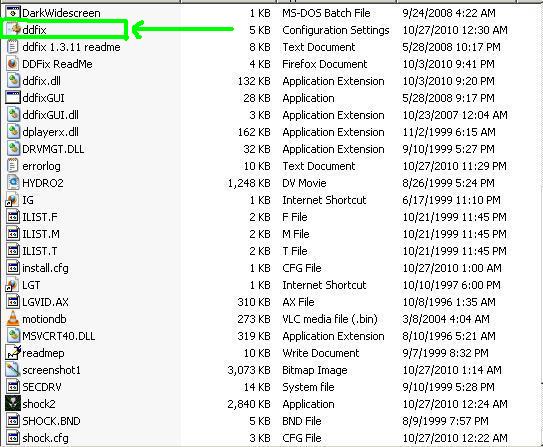
3. Locate ddfix.ini and CTRL+F for the line "MenuUpdateDelay=" (without the quotes). Change the value (the default is 14) to 25. The System Shock 2 "Title Screen Freezes" bug should be fixed. (Kudos to Kolya and Wef, who provided the fix.)

However:

Stop here and you will, in all probability, still experience: 1.) The "Shoot and Use Modes" bug that renders the game unplayable; your character will still shoot his weapon even if you are in the PC game's Use Mode. 2.) Your character looking up at the start of each game, then freezing. You can walk around but your mouse will be unresponsive, making the survival horror video game unplayable.

4. Install the SS2 Modmanager, a freeware utility that lets you launch the sci-fi game's mods from a single UI. However, the utility comes with a nifty feature: under its "Tools" menu, you will find the fix for the System Shock 2 shoot-use modes glitch:


This eliminates the System Shock 2's "looking up" bug. However, this can be solved easily by ESCaping to the PC game's main menu and then going back to the game by pressing "Continue."

Hope this solves your problems. Have fun and good luck.


>>>Click here to read more...